
Are you already a Universal Music Group statement recipient?
If so, you can get access to the Universal Music Group Global Royalty Portal (GRP) so that you can retrieve your statements and access data online through the portal, securely and efficiently. This article provides you with guidance on how to make that request to the team.
GRP is a secure web-based platform that provides:
- A dashboard and graphical representation of headline royalty data for quick review
- Analytics tools to get the most out of your royalty information
- Access to all royalty accounting documents including artist summary statements (AST), payment remittance advice (PRA), and self-billing invoices (SBI) stored in one place
- Easy-to-download statements in either .pdf or .csv format
- Once your account is active, you will be able to access our Help Centre with FAQ’s, easy-to-follow instructional guide articles and a contact form to raise enquiries easily
Submit an online access request form:
1. Access Universal Music Group Website
By entering the URL below into your internet browser window or click on the link below: https://globalroyaltyportal.umusic.com
2. Click on the Request Access link in the footer
The link is located in the footer of the page;
You will be taken to the Request Access Form on a new page
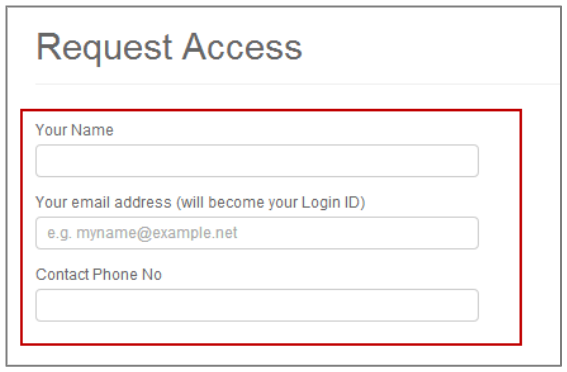
3. Enter in the following personal details in the boxes provided
a. Your Name.
b. Enter in your Email Address.
This email address will be your login ID and we will send an activation code to this email address to complete your registration once your request has been approved by the local Royalty Department.
c. Enter in a Contact Phone Number.
This is in case; we need to contact you for any reason in regards to your request.
4. Select the country in the drop down menu
Based on which country Universal Music Group sends your statements from, you will need to request access to the respective country.
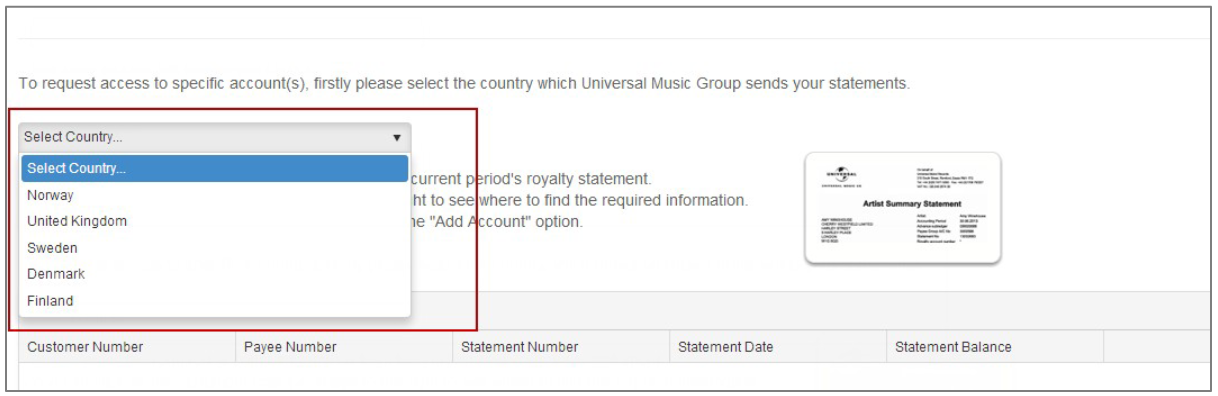
If you need access to multiple countries, then you will need to submit separate request forms.
5. Click Add Account
A line should appear in the table with text boxes under each of the field headings.
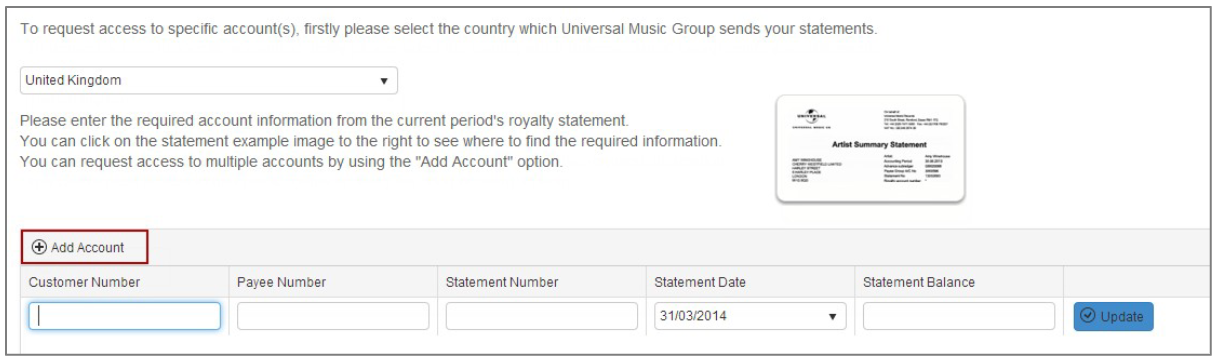
6. Enter the Account Details
This information appears on the latest Royalty Statement you have received.
a. Enter Customer Number
b. Enter Payee Number
c. Enter Statement Number
d. Enter Statement Date
e. Enter Statement Balance
This information helps us review and verify that you are a current statement recipient. If you are unsure of the information you need to enter in the table, please view the example Artist Summary Statement which will highlight the fields we need you to provide.

7. Click the Update button
To apply the added accounts, you must click the update button for each added account

The account row will be applied and the row should appear as it does below

8. Add Additional Accounts
If you want to request access to more than one account,
a. Click Add Account
A new line will appear within the table for you to enter new account details
b. Repeat steps 6 and 7
9. Review Access Request
Review the account details that you have entered for your access request and ensure all accounts added you have clicked the ‘update’ button to apply.
10. Click the Submit Button
This will submit your request to the respective country royalty department

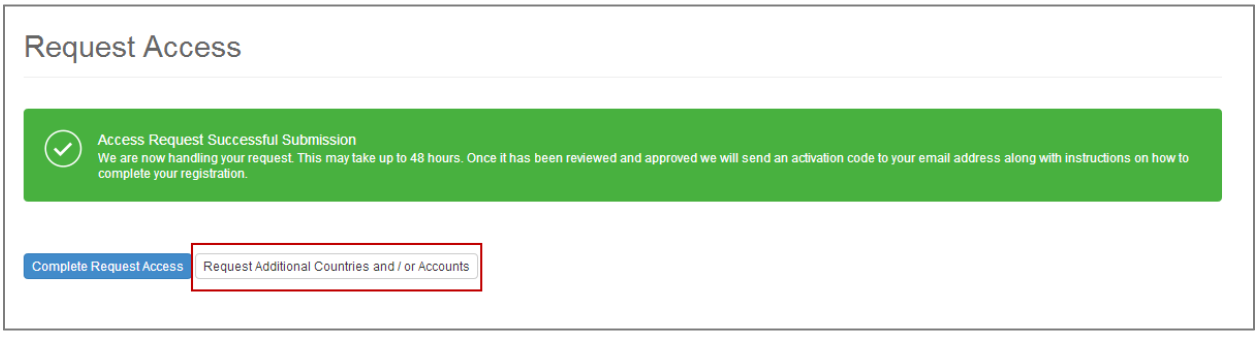
You will be directed to another screen that confirms that your request has been submitted successfully.
11. Click Confirm Request Access
This will acknowledge the notification displayed and you will be returned to the Global Royalty Portal home page
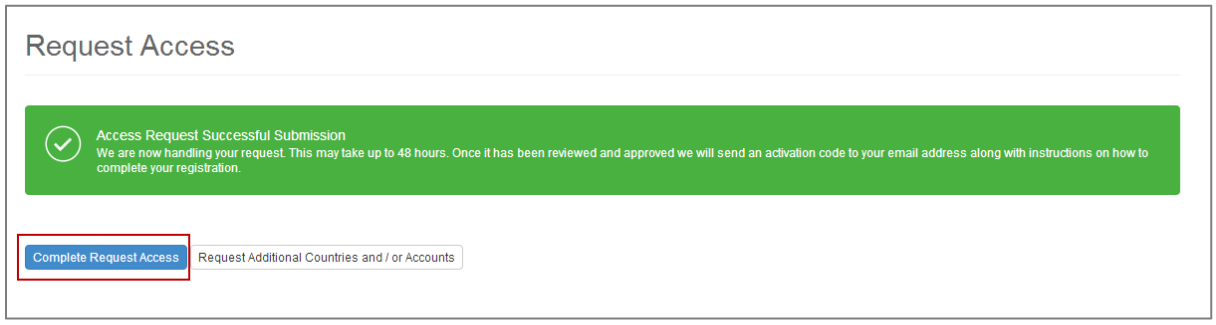
12. Request Additional Country Access
If you currently receive royalty statements from more than one country or you forgot an account in your last request
a. Click on Request Additional Access
This will direct you back to a new request access form
Access Request Review & Approval
The royalty department in the country you have submitted your request will review your request. If approved, your Global Royalty Portal account will be set up and you will receive an activation code to the email address you provided. This will contain instructions on how to complete your registration process and set up your password for login.
We look forward to supplying you with your royalty data electronically in the near future.